To manage your members, click on your group name on the left side menu. When you click on the group, the left side menu will now show the group menu. From there click “Members”.
If you have any members, they will be displayed here. You can search and sort through the members here also. You can view the members profile by clicking on the members name from the members list. If you click on the action menu (the dots to the right of the members) you can view the member, edit or delete the member if you have the proper permissions.

Adding Members
There are several ways to add members. You can invite members by clicking the “Invite Members” button in the top right of the members list or you can collect member applications from your website. You can also invite guests to your group. Click here for more information on member guests.
Inviting Members
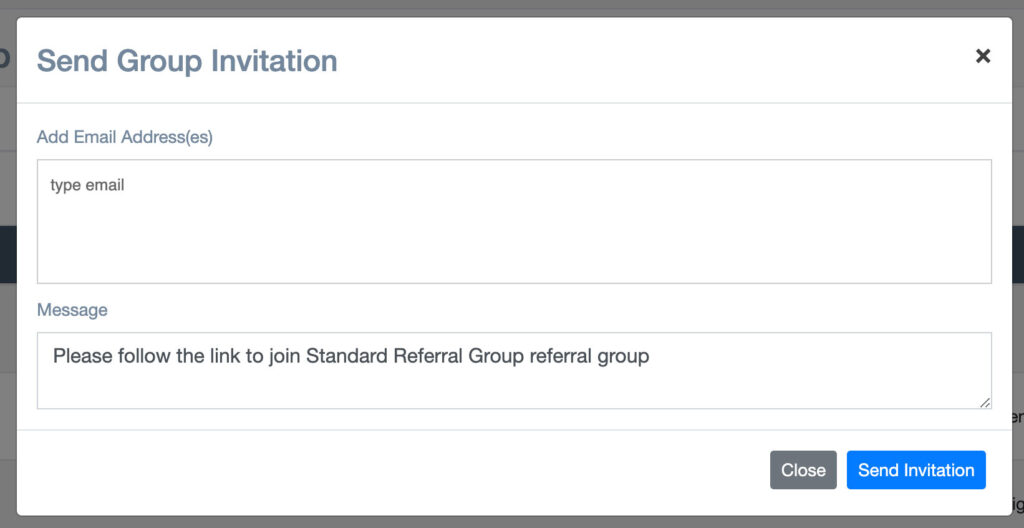
When you invite members through this method, they are sent a link to a form to fill out, that will create their user account and there membership into your group. With this method there is no screening process, they user that is invited is automatically added to your member roster.
You may send multiple emails at once, just enter the email address and press enter or tab away from the email address. You can remove any email address by clicking the ‘x’ to the right of the email addess.
Member Applications
When you collect a membership application, you must approve or deny the application. If you accept the application, the user will be sent an invitation as mentioned above. Click here for more details on membership applications.
Bulk Email & SMS/Text Messaging
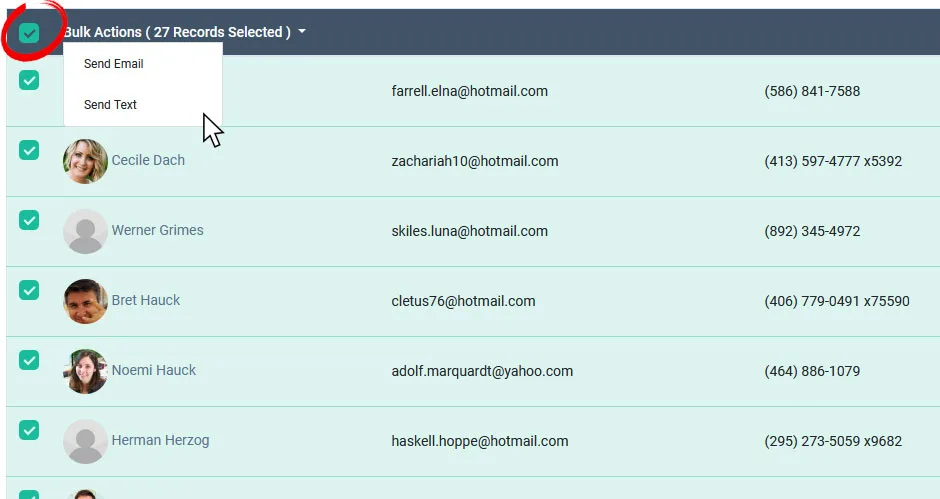
To send bulk email or SMS/text messaging to members, click the checkbox at the top left of the members list, this will select all members. You may also click the checkbox to the left of individual members to select specific members to send to.

When you click the check box you will see a “Bulk Actions” drop down to the right of the check all box at the top of the members table. Click this to see the bulk actions drop down and choose to email or text.
Members Profile
To view a members profile, click on their name in the member list, or click the action menu (dots to the right of the member’s name) and click View Member.
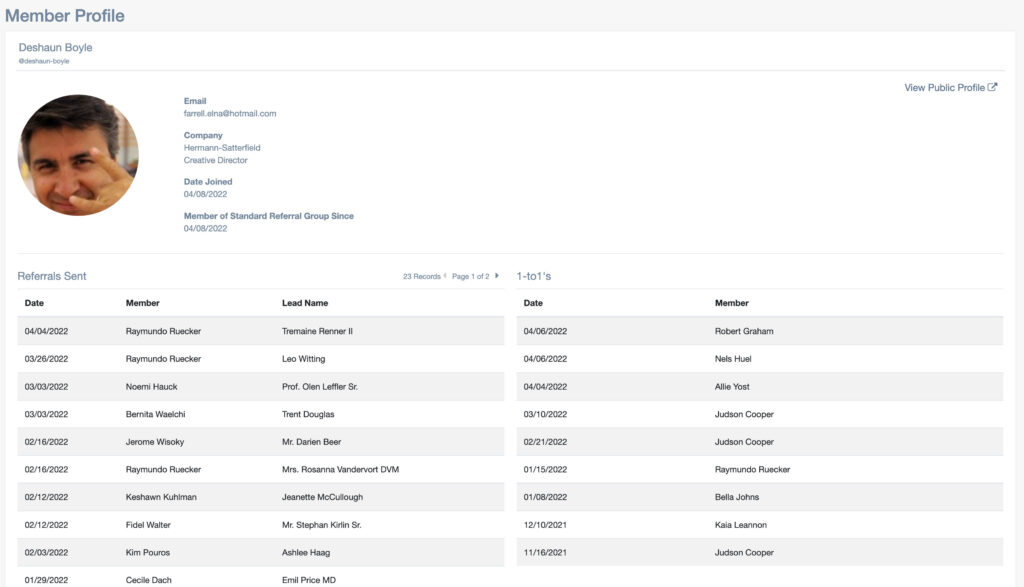
You can view the member’s public profile page by clicking the link in the top right of the page.